How Systemeio Can Save You Time: A Smarter Way to Run Your Business
Running an online business doesn't have to mean paying for multiple tools and spending hours trying to connect everything. With Systeme.io, you can manage your funnels, email marketing, automations, online courses, blogs, and affiliate program all from one platform.
Starting at just $17/month for the Startup plan, $47/month for the Webinar plan, and $97/month for the Unlimited plan.
Systeme.io gives you the essential tools you need to grow your business without the high costs or tech overwhelm. By keeping everything under one roof, you can streamline your operations, automate repetitive tasks, and spend more time focusing on your clients, content, and revenue-generating activities.
Getting Started with Systeme.io
Step 1: Choose the Right Plan for Your Business
Systeme.io offers a flexible range of plans to suit businesses at every stage of growth. You can start with the Free Plan to explore the platform and get familiar with its features before making any commitment.
As your business grows, you can upgrade to one of the paid plans:
Startup Plan ($17/month) – Perfect for new entrepreneurs and small businesses.
Webinar Plan ($47/month) – Ideal if you're using webinars to generate leads and sales.
Unlimited Plan ($97/month) – Best for established businesses that need advanced features and fewer limitations.
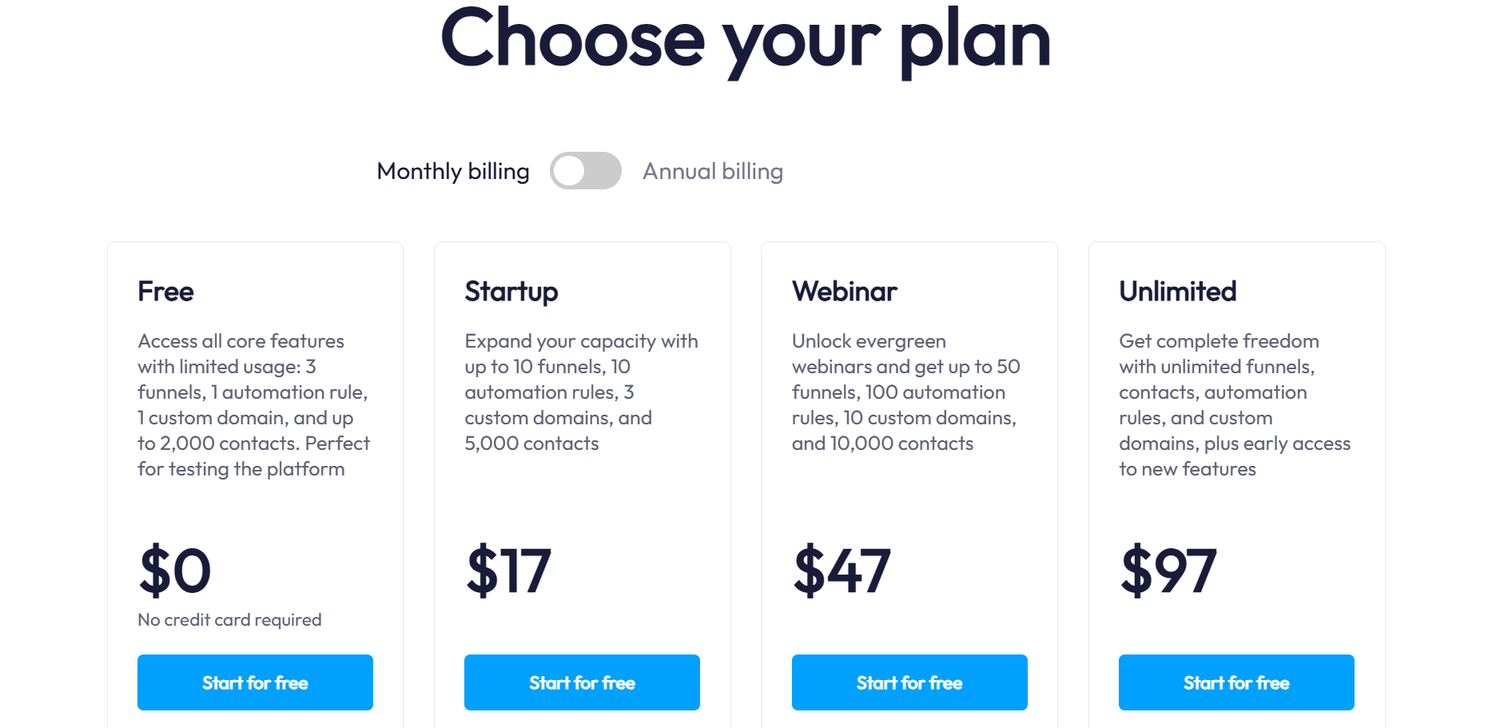
Take a few minutes to compare the plans and choose the one that best matches your current goals, business model, and budget. If you're unsure, start with the free plan and upgrade only when your business needs more features and capacity.
Step 2: Create Your Account & Verify Your Email
Once you've chosen the plan that's right for your business, click the "Start for Free" or "Get My Free Account" button on the Systeme.io website.
Enter your email address and complete the registration process to create your account.
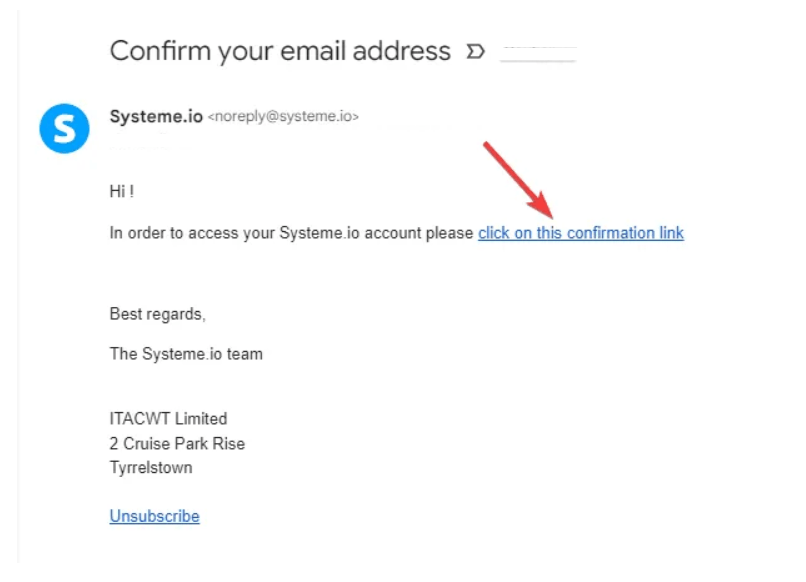
After registering, Systeme.io will send a confirmation email to the address you provided. Check your inbox (and your spam or promotions folder if needed) for the email.
Open the email and click the verification link to confirm your email address. Once verified, you'll gain access to your Systeme.io dashboard and can start setting up your business.
Step 3: Complete Your Profile Settings
After verifying your email and logging in, navigate to Settings → Profile to configure your account properly before building your funnels and automations.
Take a few minutes to complete the following information:
First Name & Last Name
Business Name
Email Address
Profile Picture (optional)
Phone Number
Business Address (if applicable)
Time Zone – Make sure this matches your local time zone so your email schedules, automations, webinars, and appointments run at the correct times.
Date & Time Format – Choose your preferred display format.
Language Settings – Select your preferred language.
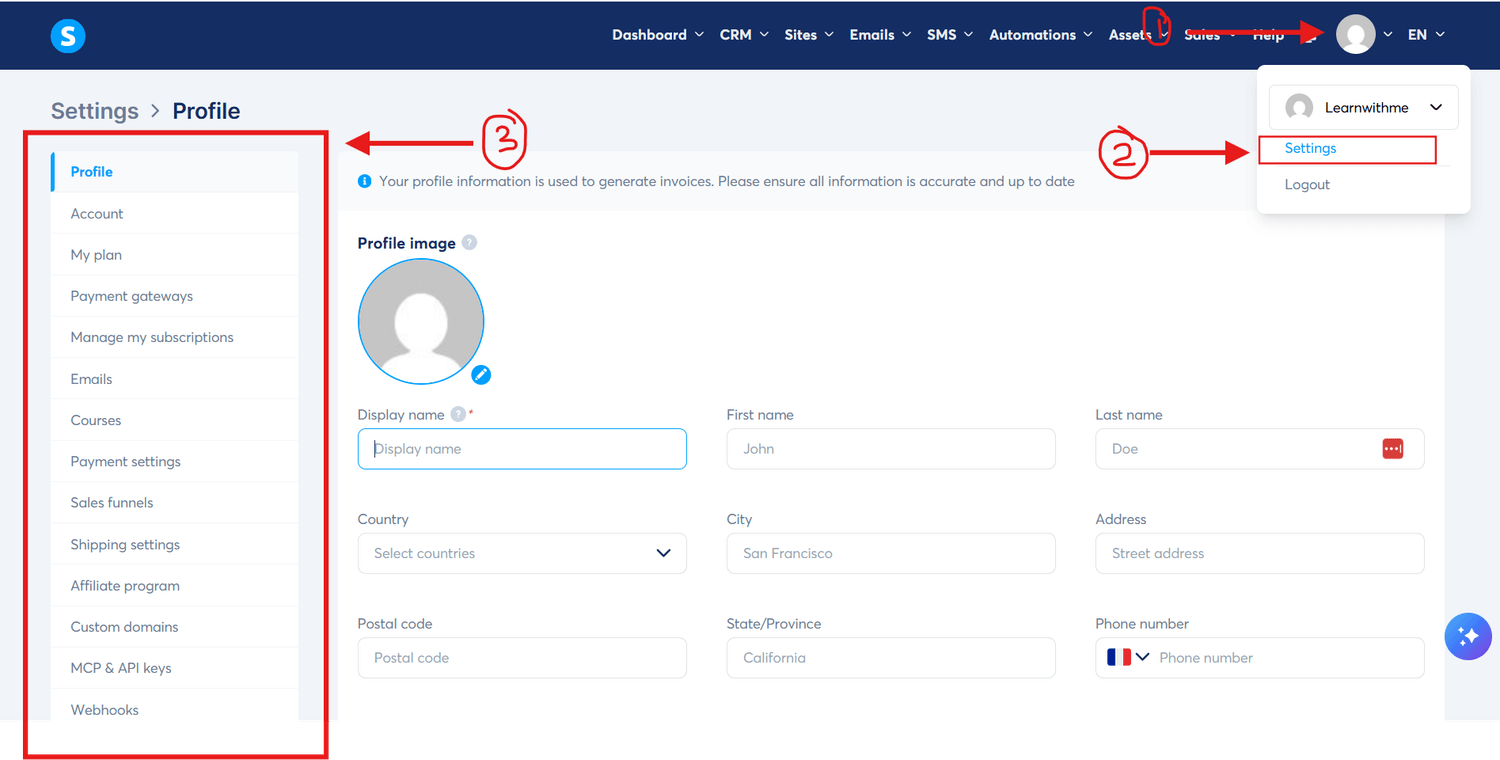
Step 4: Connect Your Custom Domain
Using a custom domain helps create a more professional brand experience and allows your funnels, websites, and landing pages to use your own branded URL.
Using a custom domain helps create a more professional brand experience and allows your funnels, websites, and landing pages to use your own branded URL.
To connect your domain, navigate to Settings → Custom Domains inside your Systeme.io account and click "Add Domain."
Enter your domain name (including www, for example: www.yourbusiness.com) and click continue.
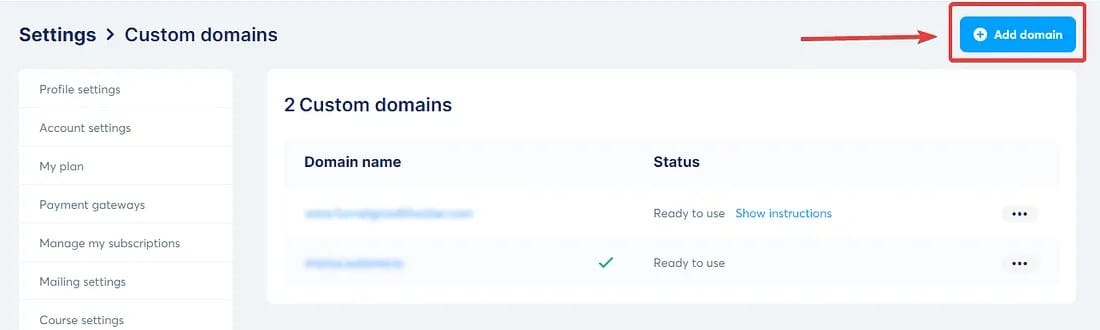
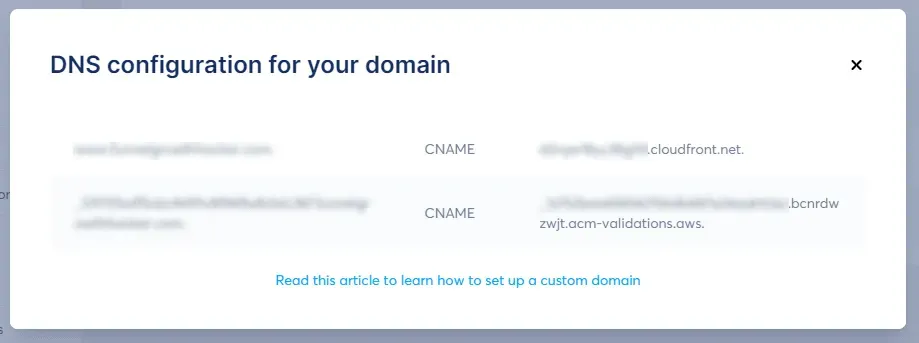
Systeme.io will then generate the DNS records required to connect your domain. These records must be added to your domain registrar's DNS settings (such as GoDaddy, Namecheap, Hostinger, Cloudflare, or other domain providers).
Once you've added the DNS records to your domain provider, allow some time for the changes to propagate. In most cases, the connection is completed within a few minutes, but it can sometimes take up to 24–48 hours.
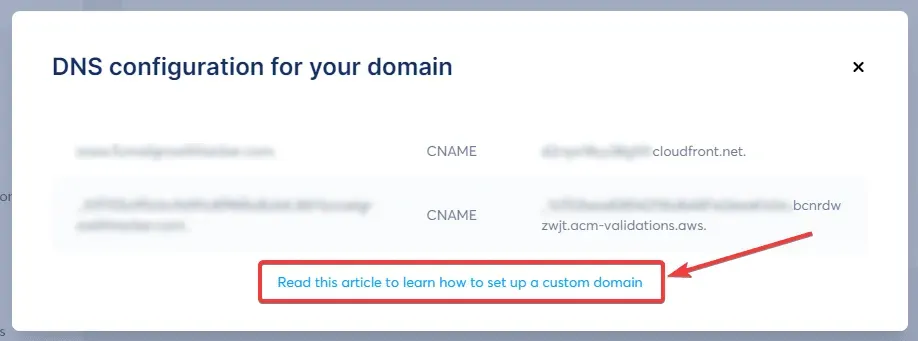
If you're unsure how to update your DNS settings, Systeme.io provides detailed step-by-step instructions for the most popular domain registrars directly from the domain setup window.
After your domain is successfully connected, you'll be able to use your custom URL for your funnels, landing pages, blogs, and websites, giving your business a more professional and trustworthy online presence.
Step 5: Connect Your Payment Gateway
Before you can start accepting payments for your products, courses, memberships, or services, you'll need to connect a payment gateway to your Systeme.io account.
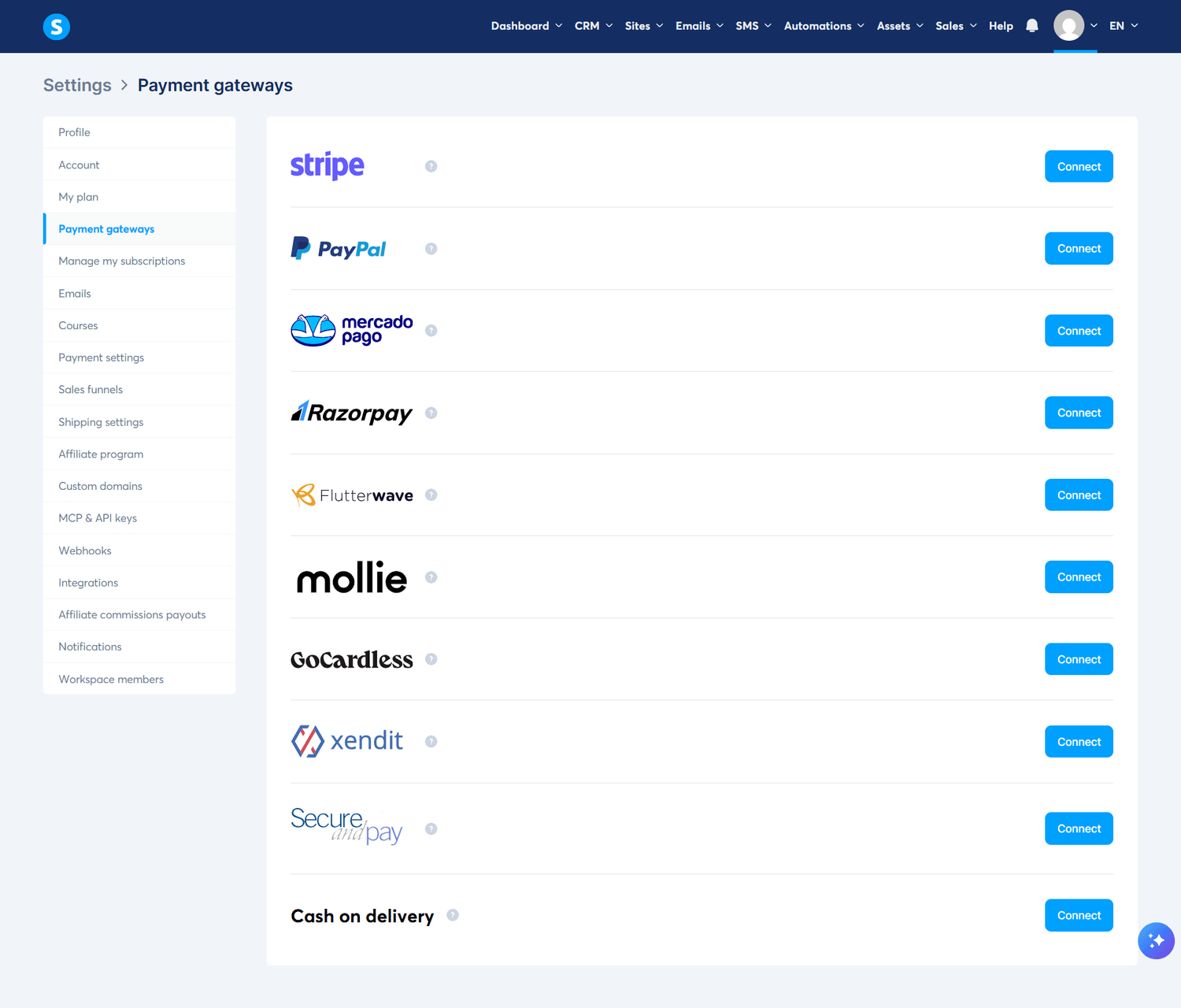
To start accepting payments, go to Settings → Payment Gateways and connect your preferred payment provider, such as Stripe or PayPal.
Click "Connect" and follow the setup instructions to authorize your account.
Once connected, create a test product and complete a test purchase to ensure everything is working correctly. If the payment goes through successfully, your payment gateway is ready to use.
Step 6: Explore Your Dashboard
Now that you've completed the essential setup, it's time to explore your Systeme.io dashboard.
Take some time to familiarize yourself with the different features available, including Funnels, Websites, Blogs, Email Marketing, Automations, Courses, Contacts, Sales, and Calendar. Exploring these sections will help you understand how everything works together, allowing you to streamline your business, automate repetitive tasks, and make the most of the all-in-one platform.